Hello Friends,Today we have one new trick for you to Hard Drive partition.This tricks help you to partition hard drive without formatting.Here some steps just follow them and enjoy.
First of all go to '
start' and then on the window that appears search for '
Computer' and then once you right-click on it another window opens and then you should navigate to the option '
Manage'.
At once a new window will open entitled '
Computer Management'. In this new window click on '
storage ' and then go to '
Disk Management'.
The completion of the second step will give you a view of all the drives present in your computer.
Among these select the one you want to partition.Then right-click on the selected drive and navigate to the option '
Shrink Volume..'
A new window should open in which the size of the drive before shrink will be mentioned and the available space to shrink will be mentioned,and in the next line you will be asked to enter the amount of space you want to shrink and this will be the size of the new partition.
Caution:
The space you enter must be within the limit available space displayed above.
After entering the values click on thee option '
Shrink' and wait for the process to complete.The time taken for the operation may be long depending upon the size of the disk and the space to be shrunk. Once the operation is completed a window appears showing unallocated space the value is exactly the one you entered earlier.Select this unallocated space and or right click on the option "
New Simple Volume".
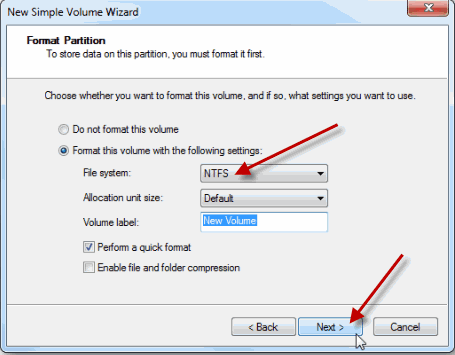
A wizard will open up.Go through the wizard and fill in the values required.Usually the value needed to enter is the same one that you entered as the volume to be shrunk.
A format page will appear and in it carefully notice that thee File system selected is '
NTFS'. After this is done enter a name for your drive and then click on '
Next' and then "
Finish".
You have reached your goal.You have partitioned your Hard Drive in Windows 7 without formatting your computer and without the use of any software.Fell free to drop your comments in the comment box.
Thank you for visit.....:)


 About
About Tags
Tags Popular


